

Can Android Desktop Mode Replace Your Laptop? The Brutal Truth
Android Desktop Mode
Imagine a world where you walk into your workspace, plug your smartphone into a monitor, and instantly get a full-blown desktop experience. No bulky laptop bag. No heavy hardware to carry. With platforms like Samsung DeX and Google Pixel’s evolving desktop interface making headlines, the concept of a smartphone-powered workspace is closer than ever.
Table of Contents
But it raises a massive question for modern professionals: Can Android Desktop Mode replace your laptop entirely, or is it just a gimmicky parlor trick?
If your daily routine consists of heavy web multitasking, creative platform management, or entry-level development, the answer isn’t as straightforward as tech marketing wants you to believe. Here is the brutal reality of how far desktop mode can actually go—and exactly where it hits a brick wall.


The Good: What Smartphone Desktops Do Well
If you are an administrative worker, a student, or a casual browser, modern smartphone desktop environments are surprisingly competent. Platforms like Samsung DeX offer a highly polished, Windows-like interface complete with resizable windows, taskbars, keyboard shortcuts, and desktop icons.
For a lightweight workflow, they can easily handle:
- Core Productivity: Drafting emails, managing Google Calendar, and basic spreadsheet editing.
- Media & Communication: Participating in Zoom or Microsoft Teams video conferences while keeping Slack open on a side window.
- On-the-Go Emergency Backups: Acting as an ultra-portable mini-PC when traveling, allowing you to connect to a hotel TV via a USB-C hub to finish a quick task.
For these specific tasks, desktop mode doesn’t just match a low-end Chromebook—it often beats it by keeping all your phone data, authentication apps, and mobile connectivity perfectly in sync on the big screen.
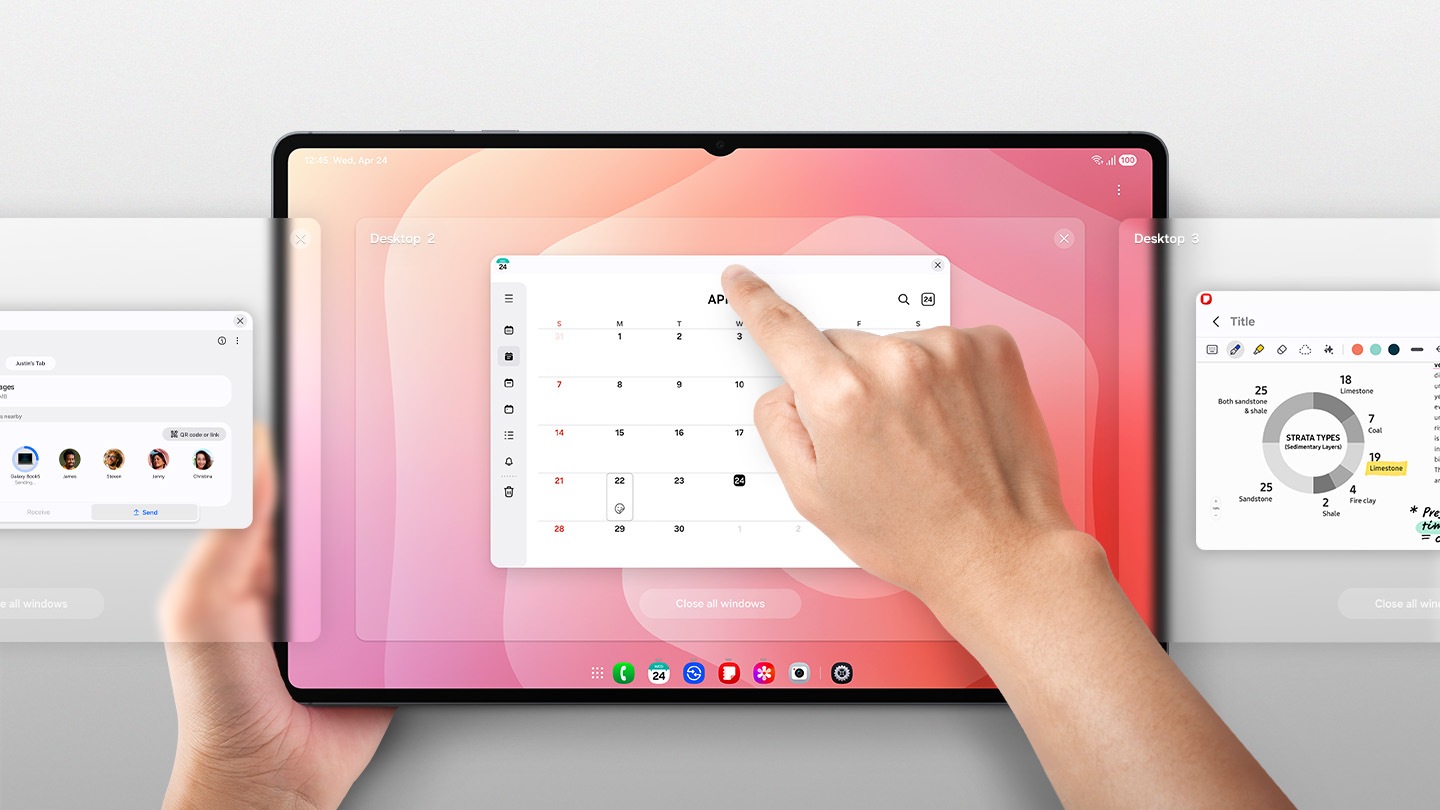
Photo: Samsung

Photo: Android Developers Blog
The Wall: Why It Collapses Under Heavy Workloads
The moment you shift from basic office admin tasks into serious power-user territory, the smartphone illusion completely shatters. If you attempt to use a phone as a full-time laptop replacement for complex workflows, you will run straight into three major structural bottlenecks:
1. The Multi-Tab Memory Nightmare
On a traditional laptop or even a mid-range Chromebook, system memory (RAM) is optimized for aggressive multi-tasking. You can open dozens, or even hundreds, of browser tabs, and the machine will hold them alive in the background.
Android operates on a fundamentally different mobile architecture. To save battery and prevent crashes, Android uses a strict “suspend and discard” mechanism. Once you open more than a handful of resource-heavy tabs, the OS freezes background pages. When you click back onto an older tab, the entire page has to completely reload from scratch. If you are mid-way through a long form or a live preview, your unsaved progress can vanish instantly.
2. Creative Platforms and UI Glitches
Heavy web applications like Canva or WordPress are massive memory hogs. Running Canva inside a mobile browser forced into “desktop view” frequently causes stuttering, laggy asset dragging, and abrupt browser crashes.
Furthermore, the WordPress admin dashboard relies heavily on complex hover menus, pop-up windows, and intricate layout tools. Because Android’s desktop pointer is translated from a touch-first interface, web elements routinely glitch, misalign, or refuse to click properly. Worse yet, mobile browsers completely lack Chrome Developer Tools (F12), making live troubleshooting or CSS inspection impossible.
3. The Local Development Block (Vibe Coding)
If you are experimenting with “vibe coding” or modern AI development, you are completely locked out. Smartphones do not expose a native local file system or a built-in terminal capable of running background local servers (like Node.js or Python). While cloud-based IDEs exist, running them alongside your AI generation tools puts an immense strain on the mobile chip, leading to severe thermal throttling and battery drain.
How Smartphone Desktops Stack Up
| Feature | Mid-Range Laptop | Modern Chromebook | Android Desktop Mode (DeX / Pixel) |
|---|---|---|---|
| Tab Management | Excellent: Caches 100s of tabs smoothly. | Good: Efficient tab freezing with quick recovery. | Poor: Aggressive background tab killing and forced reloads. |
| Extension Support | Full: Supports all desktop browser extensions. | Full: Runs complete Chrome Web Store extensions. | None: Mobile Chrome does not support extensions. |
| Local Coding/IDEs | Native: Runs VS Code, Docker, and local servers. | Partial: Supports Linux environments for dev work. | Restricted: Requires complex, unofficial workarounds. |
| Thermal Stability | High: Active fans keep the system cool. | Moderate: Low-power chips run cool without fans. | Low: Sustained heavy workloads cause intense overheating. |
The Verdict: Can It Replace Your Laptop?
No. For power users, creators, and developers, Android desktop mode cannot replace a laptop.
While Samsung DeX is a remarkably mature tool for casual office tasks, it is still anchored to a mobile operating system under the hood. It lacks the desktop file architecture, extension support, and robust memory management required for intense multitasking.
If your workload requires managing hundreds of tabs, building sites on WordPress, or designing layouts in Canva, stick to your laptop or invest in a high-RAM Chromebook. Keep your smartphone’s desktop mode exactly what it was meant to be: a brilliant, portable backup plan for emergencies.
Additional Keywords
- Samsung DeX review
- Google Pixel desktop mode
- mobile desktop environment
- smartphone mini PC
- Android productivity tips
- laptop replacement
- Chromebook vs DeX
- web development on Android

